Basics in
Computers
A practical beginner-friendly computer course designed to help learners build confidence in Microsoft Office, Google tools, digital communication, file handling, and everyday productivity skills.
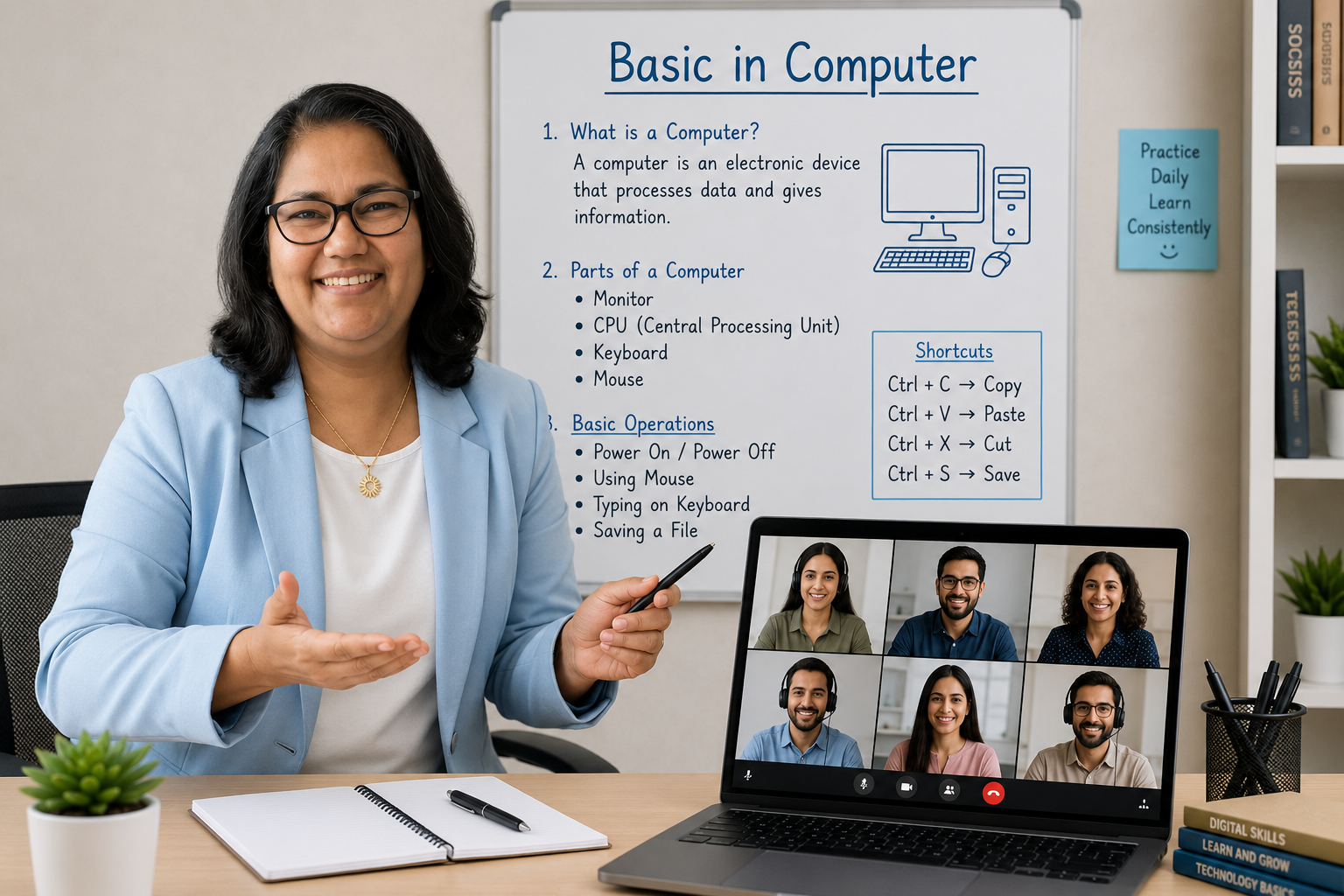
Confident digital skills for study, work, and daily productivity.
Two Practical Learning Tracks
This Basics in Computers course covers both Microsoft Office and Google Apps so learners can work confidently across desktop productivity tools and cloud-based collaboration tools.
Microsoft Office Track
Duration: 4–6 weeks · 2–3 sessions per week
- Introduction to Microsoft Office and key applications
- Basics of Word, Excel, and PowerPoint
- File management and practical computer skills
- Final project using Word, Excel, and PowerPoint
Google Apps Track
Duration: 4 weeks · 8 guided sessions
- Google account, search, and digital browsing basics
- Gmail and Google Meet for communication
- Docs, Sheets, and Slides for productivity
- Drive, sharing, and cloud file organisation
What Learners Will Develop
The program is structured around practical skills, guided activities, and real digital usage.
Digital Confidence
Understand core computer tools and use them without hesitation in daily work.
Documentation Skills
Create and format documents, letters, reports, and presentations effectively.
Productivity Skills
Use spreadsheets, charts, email, cloud storage, and productivity apps efficiently.
Practical Application
Apply learned skills through class activities, assignments, and final projects.
Structured Module Breakdown
Use the tabs below to switch between the Microsoft Office curriculum and the Google Apps curriculum.
Introduction to Microsoft Office
Understand what Microsoft Office is and explore its key applications.
Topics Covered- What is Microsoft Office
- Overview of Word, Excel, and PowerPoint
- Opening and closing applications
- Understanding the interface: Ribbon, Tabs, Toolbar
- Open each application and explore the menus
Basics of Microsoft Word
Create and format simple documents confidently.
Topics Covered- Creating a new document
- Typing and editing text
- Formatting text: font, size, colour, bold, italic
- Paragraph alignment and spacing
- Inserting images and tables
- Saving and printing documents
- Create a simple letter or notice
Basics of Microsoft Excel
Understand spreadsheets and perform basic calculations.
Topics Covered- Understanding rows, columns, and cells
- Entering data
- Basic formulas: SUM and subtraction
- Formatting cells
- Creating simple tables
- Introduction to charts
- Create a basic expense sheet
Basics of Microsoft PowerPoint
Create simple and effective presentations.
Topics Covered- Creating slides
- Choosing themes and layouts
- Adding text and images
- Slide transitions and animations
- Running a slideshow
- Create a 3–5 slide presentation about yourself
File Management & Practical Skills
Manage files properly and build essential computer habits.
Topics Covered- Saving files in folders
- Naming files properly
- Opening existing files
- Basic computer shortcuts
- Introduction to exporting as PDF
- Organise files into folders
Final Project
Apply the learned skills through a practical final task.
Task- Create a document in Word
- Create a simple budget sheet in Excel
- Create a presentation in PowerPoint
- Practical assignments
- Final project evaluation
- Basic oral or written test
Introduction to Google
Get started with Google and understand the Google ecosystem.
Topics Covered- What is Google
- Creating a Google Account and Gmail ID
- Understanding Google sign-in
- Overview of the Google ecosystem
Smart Searching
Use Google Search more effectively and browse with confidence.
Topics Covered- Using Google Search effectively
- Search tips and tricks: keywords, voice search, filters
- Finding reliable information
- Bookmarks and browsing basics
Gmail Basics
Use Gmail for communication professionally and securely.
Topics Covered- Introduction to Gmail
- Sending, receiving, and replying to emails
- Attachments and formatting
- Organising inbox using labels and folders
Google Meet
Learn the basics of joining and handling online meetings.
Topics Covered- Introduction to Google Meet
- Joining and scheduling meetings
- Basic meeting controls
- Online etiquette
Google Docs
Create, edit, and collaborate on documents online.
Topics Covered- Introduction to Google Docs
- Creating and editing documents
- Formatting text
- Sharing and collaboration
Google Sheets
Enter data and use basic formulas in spreadsheets.
Topics Covered- Introduction to Google Sheets
- Basic data entry
- Simple formulas such as sum and average
- Creating simple tables
Google Drive
Store, organise, and share files through cloud storage.
Topics Covered- Introduction to Google Drive
- Uploading and organising files
- Sharing files and folders
- Understanding cloud storage
Google Slides
Create and present simple slide presentations.
Topics Covered- Introduction to Google Slides
- Creating presentations
- Adding images and text
- Basic design tips
- Create and send an email
- Prepare a document in Google Docs
- Make a simple budget sheet
- Create a presentation and share files via Drive
What Learners Will Be Able To Do
The course outcomes are practical, useful, and directly linked to everyday digital tasks.
Create Documents
Use Word and Google Docs for notices, reports, letters, and basic documentation.
- Typing and editing
- Formatting and layout
- Insert images and tables
Work With Data
Use Excel and Google Sheets for tables, data entry, and basic calculations.
- Rows, columns, cells
- SUM and simple formulas
- Tables and basic charts
Create Presentations
Use PowerPoint and Google Slides to build clean and simple presentations.
- Create slides
- Add images and text
- Run slideshows confidently
Communicate Professionally
Learn email basics and meeting behaviour using Gmail and Google Meet.
- Send emails
- Use attachments
- Join and manage meetings
Organise Files
Manage folders, save files properly, and understand cloud storage essentials.
- File naming
- Folder organisation
- Drive and PDF export
Complete Practical Tasks
End the course with practical assignments and projects that use real tools together.
- Office final project
- Google apps practice tasks
- Confidence for daily use
Tools Covered In The Program
Learners get exposure to widely used office tools and cloud productivity apps.
Microsoft Tools & Their Uses
- Microsoft Word – Create and format documents like letters, reports, and notices
- Microsoft Excel – Organise data, perform calculations, and create charts
- Microsoft PowerPoint – Design and deliver visual presentations using slides
- Microsoft Outlook – Send emails, manage calendars, and schedule tasks
- Microsoft OneNote – Take, organise, and store notes digitally
- Microsoft Access – Create and manage databases for storing large amounts of information
- Microsoft Publisher – Design brochures, flyers, and marketing materials
- Microsoft Teams – Join online meetings, communication, and teamwork
Google Apps & Their Uses
- Google Search – Find information instantly from the internet
- Gmail – Send and receive emails easily and securely
- Google Drive – Store, access, and share files online
- Google Docs – Create and edit documents online
- Google Sheets – Organise data and perform calculations
- Google Slides – Create presentations with text and visuals
- Google Meet – Connect through online video meetings
- Google Forms – Create surveys, quizzes, and collect responses
- Google Calendar – Plan schedules and set reminders
- Google Keep – Save quick notes, ideas, and to-do lists
- Google Maps – Find locations and get directions
- Google Photos – Store and organise photos and videos
Book Your Free Basics in Computers Demo Class
Help learners build a strong digital foundation through hands-on Microsoft Office and Google Apps training.
- Beginner-friendly practical sessions
- Microsoft Office and Google tools coverage
- Assignments and project-based learning
- Daily life, school, and work-ready digital skills
Enquire Now
Fill the details and the team can contact the parent or learner for the next available batch.